What is AI Genzox?
AI Genzox is a suite of free-to-use tools for images, PDFs, QR codes, and focused document workflows. No account is required.
Processing depends on the tool. Gemini Watermark Remover processes supported files locally in your browser. Image, QR, and PDF tools may temporarily upload files or entered data for processing on our servers. Some tools may retain files and results for up to 24 hours until scheduled cleanup.
The tools at a glance
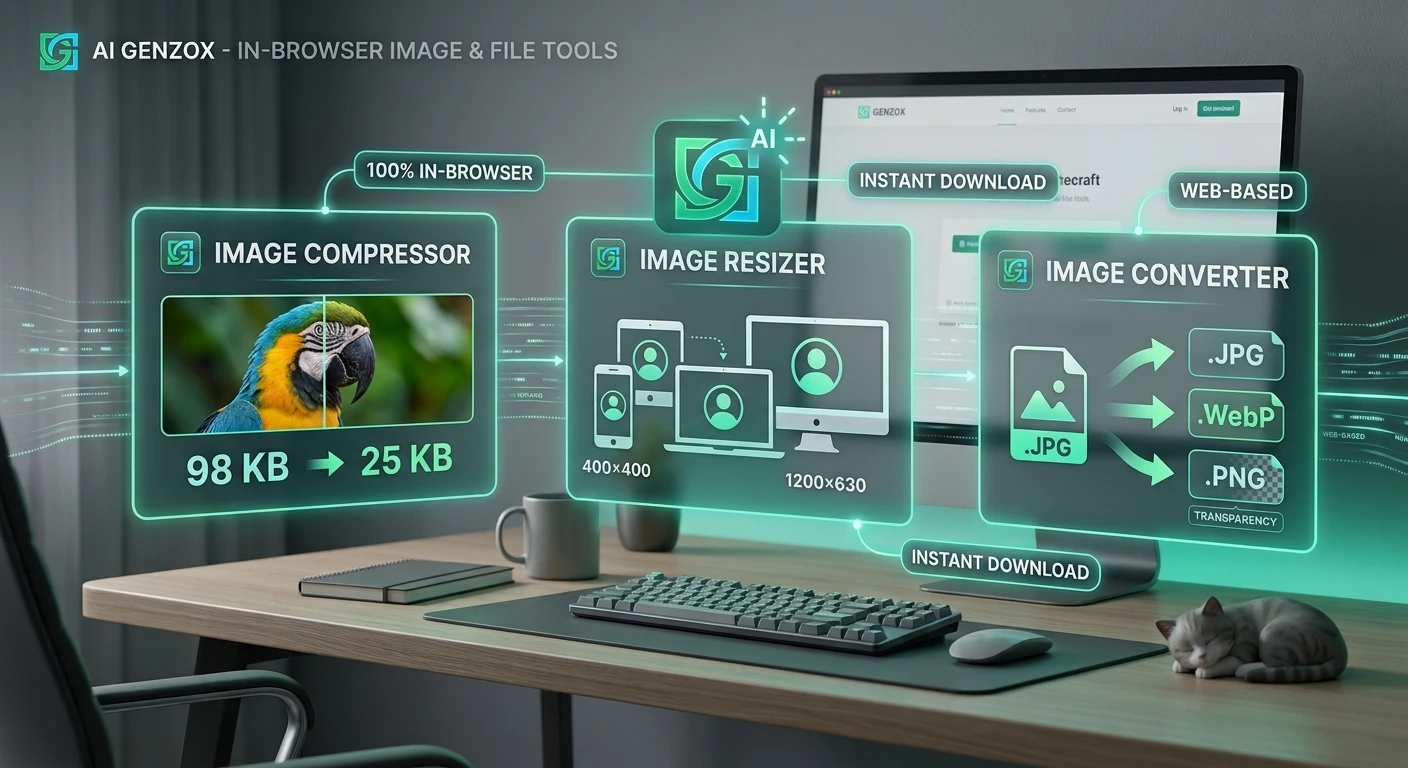
Image Compressor
Processes up to 50 images with shared quality and format settings. Each image is temporarily uploaded and processed separately; Download All creates a ZIP in your browser. Review each result because savings and visual quality depend on the source and settings. See How to Compress Images Without Losing Quality.
Image Resizer
Lets you set exact pixel dimensions for one JPG, PNG, WebP, or GIF up to 50 MB. The file is temporarily uploaded for processing and cleaned up after the request completes.
Image Converter
Converts one JPG, PNG, WebP, or GIF at a time. Available outputs are reported by the production encoder. Lossy formats and quality settings can change pixels, so review the result before replacing an original.
PDF, QR, and watermark tools
Image to PDF combines up to 50 images. PDF Compressor accepts one PDF up to 250 MB, while PDF to Image accepts one PDF up to 50 MB and 100 pages. QR Generator sends URL, text, Wi-Fi, or vCard data to the server and returns a static PNG. Gemini Watermark Remover processes one supported image or video locally without uploading it for watermark processing.
How to use any tool
Every tool on AI Genzox follows the same three-step pattern:
- Choose a public tool and check its limits. Inputs, counts, page limits, and browser requirements vary.
- Add the file or data and choose available settings. Some tools provide previews; job-based tools instead show upload and processing status.
- Review and download the result. Keep your original until you have checked the new file.
Files are retained only as needed for processing. Server-job files and results may remain for up to 24 hours until scheduled cleanup; browser-local Gemini files remain on your device for processing.
Tips for better results
Start from the highest-quality original you have. Compressing or converting a file that has already been compressed multiple times compounds quality loss. Keep originals, work from those.
Use WebP where you can. It is smaller than JPEG, supports transparency, and is supported in all modern browsers. The Image Converter tool makes the switch in seconds.
Review the available result or status. Preview behavior varies by tool. Check dimensions, output size, pages, and visible quality before replacing an original.
Use batch only where supported. Image Compressor accepts up to 50 files, and Image to PDF accepts up to 50 images. Other public tools accept one source at a time.
Check current availability
The homepage and Tools directory list current PUBLIC tools. Preview and disabled tools remain excluded from public discovery until released.
If you run into anything unexpected or have a feature request, the feedback link at the bottom of every page goes directly to the team.