Having several PDFs that belong together is one of those problems that sounds easy until you actually have six files open, three slightly different filenames, and absolutely no confidence about which one should come first.
Maybe you have a report, its appendix, a signed form, and supporting documents that need to become one file. Or perhaps you downloaded several chapters separately and now want one document instead of a small digital pile.
Whatever the reason, whether you are combining two PDFs or twenty, the basic job is the same:
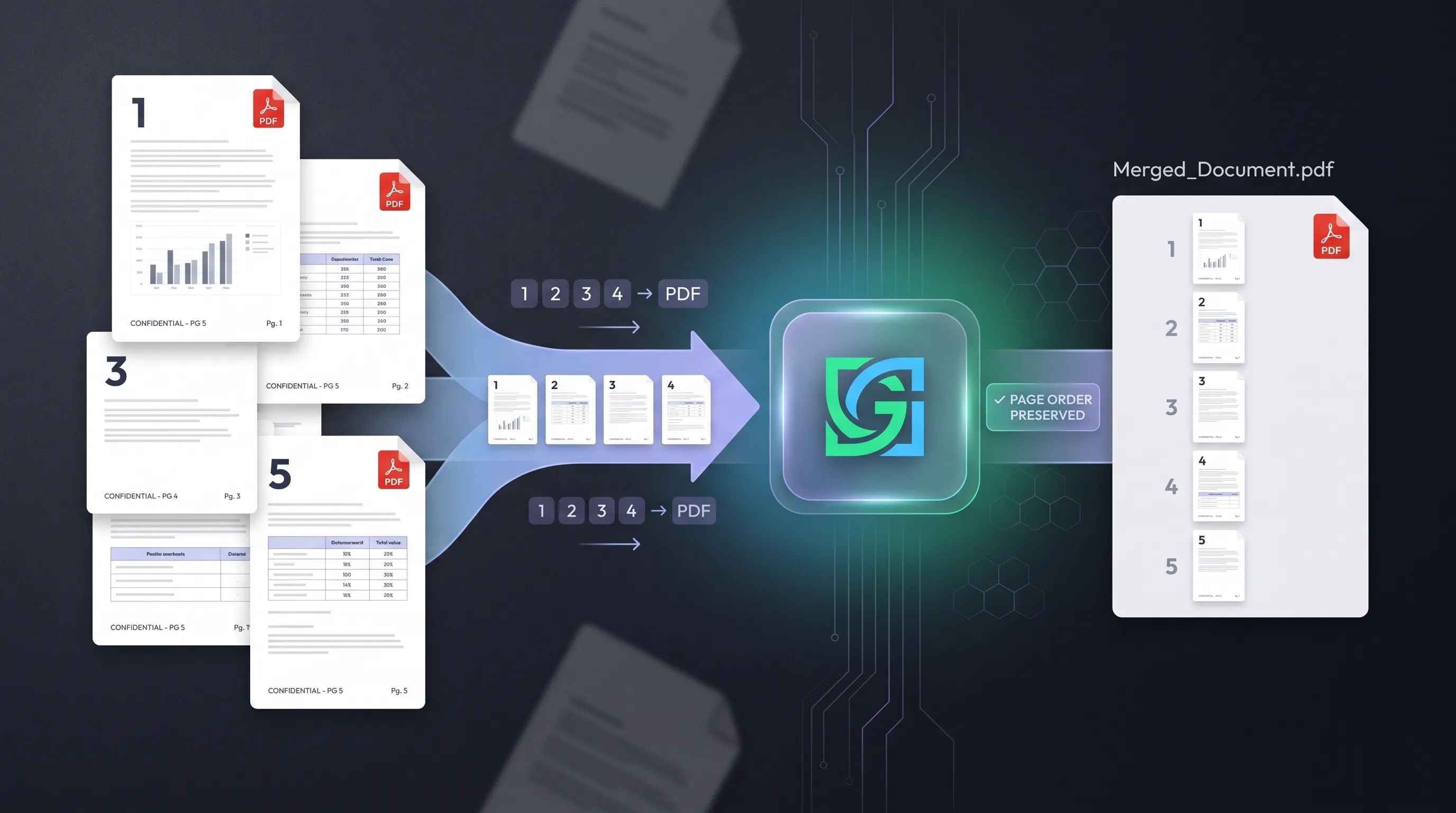
Take multiple PDF files and combine them into one PDF while keeping the pages in the correct order.
This guide explains how to merge multiple PDFs into one PDF, how to avoid page-order mistakes, and how to choose a workflow that does not turn a two-minute task into an afternoon project.
What does merging multiple PDFs actually do?
When you merge PDFs, you are combining the pages from separate PDF files into one new PDF document.
For example:
- Report.pdf — 8 pages
- Appendix.pdf — 4 pages
- References.pdf — 3 pages
After merging:
- Final-Report.pdf — 15 pages
The individual pages remain pages. They are simply brought together into one document.
That is different from putting multiple PDF pages onto one physical page.
If you take pages 1 and 2 and place both onto a single sheet, you're dealing with a layout or printing operation (often called N-up printing). If you take:
PDF A + PDF B + PDF C → one PDF
that is the normal PDF merge workflow.
This distinction matters because searches such as "merge multiple PDF pages into one page" can describe a completely different task.
Why page order matters more than it seems
The most annoying PDF merge is not the one that fails.
It is the one that succeeds perfectly and gives you the wrong document.
Imagine combining:
- Cover
- Chapter 1
- Chapter 2
- Appendix
- References
but the final file comes out:
- Cover
- Appendix
- Chapter 2
- References
- Chapter 1
Technically, congratulations. You created a PDF.
Practically, you created a document that needs an apology.
That's why the useful part of a how to merge multiple PDFs workflow isn't simply clicking "Merge." You need to establish the intended order before creating the final file.
Modern PDF tools commonly provide some form of file reordering before the final merge. Adobe Acrobat, for example, lets users arrange files and pages before creating the combined PDF, while its current documentation also supports rearranging pages afterward.
Before you merge PDFs, organize the files
The easiest way to avoid mistakes is to solve the ordering problem before uploading anything.
If your files are currently named:
document-final.pdfdocument-final-2.pdfnewdocument.pdfscan0004.pdfappendix.pdf
you are already playing on hard mode.
Rename them logically first.
For example:
01-cover.pdf02-report.pdf03-appendix.pdf04-references.pdf
This gives you a clear sequence before you even open the merger.
If renaming isn't practical, write down the intended order or arrange the files carefully after uploading them.
The goal is simple:
Know the order before you click Merge.
How to merge multiple PDFs into one PDF
Whether you're combining two PDFs or twenty, the general workflow follows the same steps.
1. Gather the PDFs
Put all the files that belong in the final document in one place.
Check that you're using the correct versions. If you have report-final.pdf, report-final-new.pdf, and report-final-new-actually-final.pdf, perhaps take a moment before continuing.
Your future self will appreciate it.
2. Open a PDF merging tool
Use the AI Genzox Merge PDF tool to bring the files together.
If you want to merge multiple PDFs online without installing heavy desktop software or paying for an expensive subscription, a free browser-based PDF merger can be the simplest option. You simply select your files, arrange them into the correct sequence, and download the combined document in seconds.
3. Add the PDF files
Upload the PDFs you want to combine.
Before merging, check the list carefully.
If you accidentally leave out a file, the final PDF may still look completely normal — just incomplete.
That's a particularly sneaky failure because nothing technically "breaks."
4. Put the files in the correct order
Arrange the PDFs from first to last.
For example:
01-cover → 02-main-report → 03-appendix → 04-references
Think about the final document, not the order in which the files happened to land on your desktop.
If one PDF contains several pages, its pages will normally remain together as part of that document unless you specifically rearrange individual pages.
5. Merge the PDFs
Once the order is correct, start the merge.
The result should be one PDF containing the pages from the selected documents in the sequence you established.
6. Check the beginning, middle, and end
Don't immediately close everything and assume victory.
Open the resulting PDF and check:
- first page
- last page
- transitions between documents
- page count
- important forms or signatures
- bookmarks or navigation if relevant
For a large document, checking the transition between each source file is especially useful.
That's where ordering mistakes tend to reveal themselves.
How to merge PDFs without losing page order
If page order is the main concern, use this simple process:
Sort → upload → arrange → merge → verify
The important step is arrange.
Do not rely on filenames alone if the interface allows you to reorder files manually. Drag-and-drop ordering makes the intended sequence visible before the merge.
Adobe's current PDF merger follows the same general principle: files can be arranged before combining, and the first file in the selected sequence becomes the beginning of the merged document.
For a more complicated document, go one step further.
Suppose you have:
01-cover.pdf02-contract.pdf03-terms.pdf04-signature.pdf05-supporting-documents.pdf
Write the intended structure down first.
Then compare it with the upload order.
Five seconds of checking is cheaper than discovering on page 47 that the signature page somehow arrived before the contract.
What if you need to merge only certain pages?
Sometimes the problem isn't:
"I have several PDFs and want everything."
It is:
"I need pages 2–5 from this PDF, page 1 from another, and the final two pages from a third."
That's a slightly different workflow.
You need to select and arrange pages, not merely combine entire files.
Desktop PDF applications such as Adobe Acrobat support this kind of page-level organization. If your merger supports page-level selection, remove unwanted pages before creating the final document.
If your tool only combines complete PDFs, prepare the individual source documents first by extracting the required pages, or use a tool specifically designed for page extraction or reorganization.
The important thing is not to confuse file merging with page editing.
How to combine PDF files on Mac
Mac users have two built-in options depending on whether they need to merge whole files or specific pages.
Option 1: Finder Quick Actions (Simplest for whole files)
If you have two or more complete PDFs and just want to join them:
- Select the PDF files in Finder. Note that macOS combines them in the order they were selected.
- Control-click (or right-click) the selected files.
- Choose Quick Actions → Create PDF.
- macOS creates a new combined PDF alongside your originals.
Option 2: Apple Preview (For page-level control)
When you need to review thumbnails or insert pages into a specific location:
- Open the base PDF in Preview.
- Choose View → Thumbnails to display the page sidebar.
- Drag another PDF file (or specific page thumbnails) directly into the thumbnail sidebar where you want them inserted.
- Drag thumbnails up or down to adjust the page sequence.
- Choose File → Export as PDF (or save) to export the combined document.
Important caution from Apple Support: Preview can save edits automatically into open documents. Always duplicate your original source PDFs before combining them in Preview so your untouched copies remain safe.
For users who prefer not to manage local file versions, an online PDF merger can be simpler: upload your files, adjust their order visually, merge, and download.
How to combine PDF files on Windows
Windows does not provide the same straightforward built-in PDF-combining workflow that macOS offers. The built-in Microsoft Edge PDF reader is designed for viewing, drawing, ink annotations, and printing, but does not provide a native desktop tool to join separate PDF files together.
If you have several local PDFs in your Downloads or Documents folder and simply want to combine them, using a dedicated browser-based PDF merger is often the fastest, zero-install option.
Also, be careful not to confuse Microsoft Print to PDF with a true PDF merger. Print to PDF converts an open document or webpage into a new PDF; it cannot take multiple existing, separate PDF files and join them into one sequential document.
Does merging PDFs reduce quality?
A normal merge should not inherently reduce the quality of the source pages, but the behavior depends on how the merging tool creates the output.
In a standard merge operation, the tool simply takes the existing streams, fonts, vectors, and embedded images from each source file and writes them into a unified PDF structure. It does not need to recompress images or alter text vectors.
However, if a tool converts, rasterizes, recompresses, or downsamples content while creating the output, visual quality can change.
This is why you should inspect the final document when fidelity matters — especially for:
- scanned documents
- high-resolution photographs
- diagrams and blueprints
- signatures
- small typography
If the final merged PDF becomes larger than you want, treat that as a separate step. Merge the files first to get the correct structure, then run the document through a PDF Compressor to optimize its weight without confusing merging with compression.
What happens to page numbers after merging?
Existing page numbers printed inside the source PDFs generally remain part of those pages.
So if one document has pages labeled 1–10 and another has pages labeled 1–5, the merged document can contain visible numbering like:
1, 2, 3 ... 10, 1, 2, 3 ... 5
The PDF viewer will also display its own document page count that simply runs from 1 to 15.
Those are two different things.
If you need one continuous visible numbering system — for example:
1, 2, 3 ... 15
you may need a separate pagination or PDF editing step after merging. Merging documents combines their pages; it does not automatically re-stamp printed text on existing pages.
Common PDF merging mistakes
Uploading files in random order. The merger cannot read your mind. If the sequence matters, verify the order before merging.
Assuming filenames always determine order. Some tools sort uploads differently depending on how files are selected or displayed. Check the actual visual order shown in the interface.
Deleting the originals immediately. Keep the source PDFs until you've verified the combined file.
Confusing merging with putting pages side by side. Combining files creates one sequential PDF. Putting multiple pages onto one sheet is an N-up printing operation.
Ignoring the final page count. If three files contain 8, 12, and 5 pages, you should expect 25 pages unless you intentionally removed pages.
Checking only the first page. A merged PDF can begin correctly and still have a disordered middle section.
Merging outdated versions. report-final.pdf is not necessarily the latest report. Check your source files before combining them.
Using print-to-PDF as a merger. Printing multiple PDFs does not join them sequentially and can degrade text and vector quality.
When should you merge PDFs instead of keeping them separate?
Merging is useful when documents belong together and will normally be shared, archived, or reviewed as one package.
Examples include:
- a report and its appendices
- a job application and supporting certificates
- a contract and related schedules
- a portfolio containing several sections
- scanned pages belonging to one document
- multiple chapters of an ebook or manual
- an invoice package with receipts
- regulatory documentation that must be submitted as one file
Keeping PDFs separate is better when the documents have different audiences, different permission or security levels, independent update schedules, or strict individual file-size limits.
Don't merge five documents simply because you can. Sometimes five PDFs are five PDFs for a reason.
A practical checklist
Before downloading and sending your merged PDF, check:
- Did I select every PDF that belongs in the final document?
- Are the files arranged in the intended order?
- Did I verify that I'm using the latest versions of each file?
- Is the final page count what I expected?
- Did I check the transitions between the source PDFs?
- Are important forms, signatures, images, and text still displaying cleanly?
- Did I keep the original source PDFs safe until the final document was verified?
The basic process for how to merge multiple PDFs into one PDF is simple:
Choose the files → put them in order → merge → verify.
The actual merge usually takes seconds. The part worth taking seriously is the order.
Because when someone asks you for one PDF containing the complete document, "Here it is — except the appendix is somehow between the cover and page two" is not the kind of document delivery anyone was hoping for.