Most email providers cap attachments at 25MB, and plenty of corporate inboxes bounce anything over 10MB. If a report, scanned contract, or portfolio PDF is too big to send, you don't need to strip it down to a blurry mess — you just need to compress pdf files the right way. Done correctly, a compressed PDF looks identical to the original at a fraction of the size.
Why PDFs get so large in the first place
A PDF isn't one file type — it's a container that can hold high-resolution images, embedded fonts, scanned pages, and even editable form fields. Most bloated PDFs fall into one of these categories:
- Scanned documents. A scanner set to "high quality" can produce a 300 DPI image per page, which adds up fast across a multi-page contract.
- Embedded photos. Reports and portfolios with full-resolution photos carry that image weight straight into the PDF.
- Unoptimized fonts. Some export tools embed entire font families instead of just the characters used.
Knowing which of these applies to your file tells you how much you can realistically shrink it, and whether you're trying to reduce pdf file size by re-encoding images or by stripping unnecessary embedded data.
How PDF compression actually works
When you reduce pdf size, the tool is typically doing one or more of the following:
- Re-compressing embedded images at a lower quality setting, the same way a JPEG or WebP gets compressed.
- Downsampling image resolution — a 300 DPI scan gets resized to 150 DPI, which is still sharp on a screen but much lighter.
- Subsetting fonts so only the characters actually used are kept, instead of the full font file.
- Removing redundant data like duplicate objects, unused metadata, or leftover editing history.
Supported text PDFs generally retain searchable text, but scanned, image-only, damaged, and fallback-processed documents may behave differently. Reduction and visible changes depend on the source document and selected profile.
Choosing a compression level for email
Most tools that compress pdf online offer a few preset levels. Match the preset to what the file needs to do after you send it:
| Goal | Recommended setting |
|---|---|
| General email attachment, under 5MB | Medium / Balanced |
| Strict inbox limit (under 1MB) | High compression, downsample images |
| Archival copy someone will print | Low compression, keep resolution high |
| Quick share, appearance doesn't matter | Maximum compression |
If your recipient just needs to read the document on screen, you can compress far more aggressively than if they're going to print it at full size.
Step by step: compressing a PDF with AI Genzox
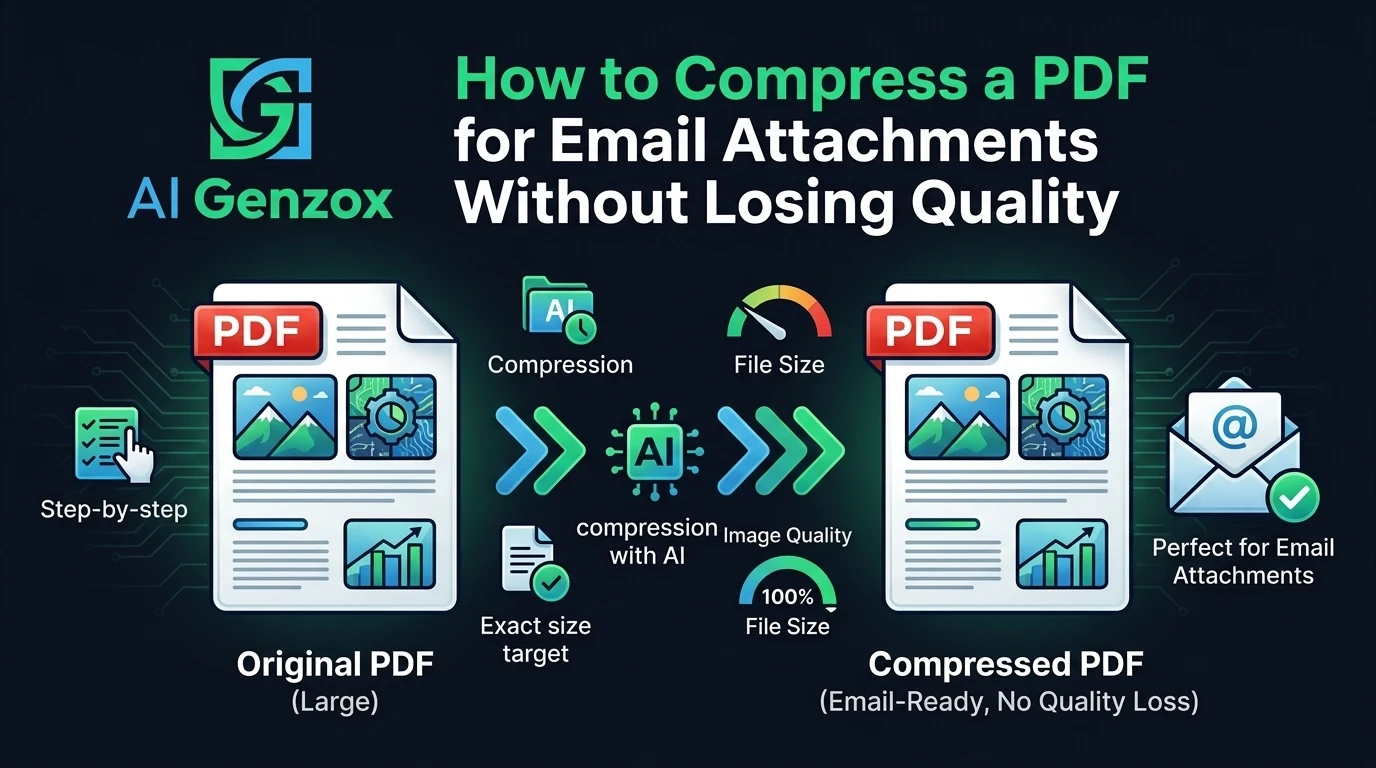
The PDF Compressor temporarily uploads one PDF up to 250 MB, processes it on our servers, and reports the actual result after processing.
- Upload your PDF. Drag it onto the tool or click to browse.
- Pick a compression profile. Balanced is a practical starting point. Smaller file is more aggressive, but no profile guarantees a specific final size.
- Review the completed result. Compare the actual size and open the output to check text, images, forms, and page layout.
- Download and attach. The compressed file replaces nothing — your original stays untouched on your device.
If you still have the original images, resize or compress those sources before rebuilding the PDF with Image to PDF. Image Converter changes format but does not provide a resize control.
The uploaded PDF and generated result may remain temporarily during processing and for up to 24 hours until the next scheduled cleanup.
New to AI Genzox? The getting started guide covers every tool on the platform in one place.
Working toward a size limit
Some situations impose a fixed maximum, such as a 2 MB portal limit. AI Genzox does not currently offer an exact-target control, so use the completed output size as your measurement:
- Compress pdf to 100kb or compress pdf to 200kb targets are realistic for text-only documents (contracts, resumes, forms) but usually mean stripping images almost entirely if the file has any.
- Compress pdf to 1mb targets are comfortable for documents with a handful of images or a few scanned pages.
- Try a more aggressive profile only after checking the first result.
- If you're still over the limit after maximum compression, the file likely needs pages split out or images removed rather than compressed further.
Common mistakes that hurt PDF quality
Compressing a PDF more than once. Just like JPEGs, re-compressing an already-compressed PDF stacks quality loss on top of quality loss. Always compress from the original source file.
Using a generic "compress pdf free" tool that flattens everything to images. Some low-end tools convert every page to a low-resolution image to force the file size down, which destroys selectable text and makes the document look blurry even at 100% zoom. Look for a tool that re-compresses embedded images without rasterizing the whole page.
Ignoring where the size is actually coming from. If a 20-page contract is 40MB, the problem is almost always embedded images or an over-scanned cover page — not the text. Compressing text-heavy pages harder won't help; targeting the image-heavy pages will.
Skipping the size check before sending. Attachment limits vary by provider. Check the completed output size before attaching it.
A practical checklist
Before sending a PDF as an email attachment, run through these checks:
- Do I know why the file is large — scanned pages, embedded photos, or fonts?
- Have I picked a compression level that matches how the recipient will use the file?
- Does the output size fit comfortably under my email provider's or the recipient's attachment limit?
- Am I compressing the original file once, not a previously compressed copy?
If all four are yes, your PDF will attach cleanly and still look sharp on the other end.